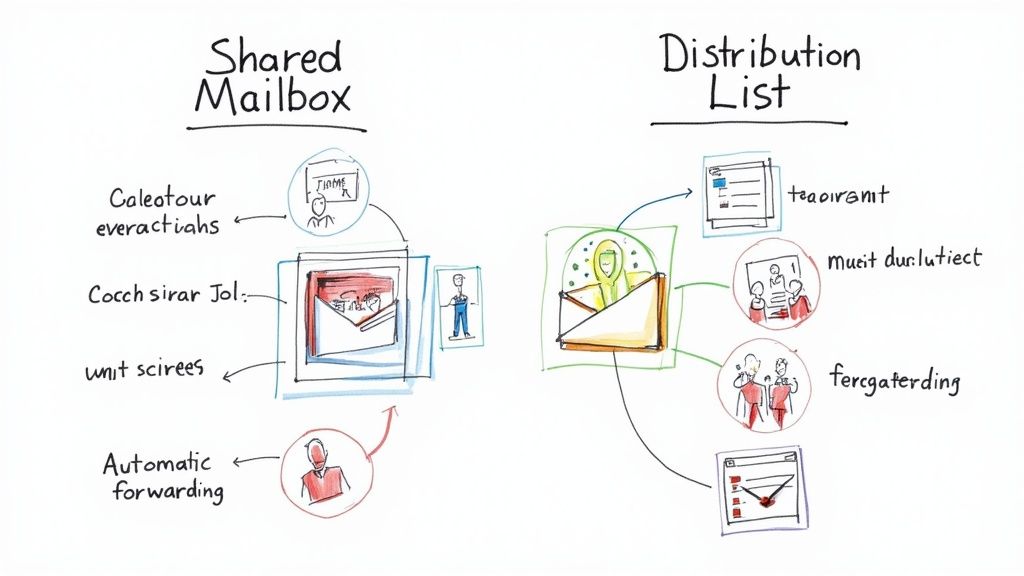
Distribution list vs shared mailbox: the 30-second answer
A distribution list forwards a copy of every incoming message to each member's own inbox and stores nothing itself. Microsoft calls it a distribution group in the admin center, Google calls it a mailing list, and people who administer either one usually just say DL.
A shared mailbox is a real mailbox with its own address that several people open, read and reply from. One copy of the conversation exists, in one place, and every reply goes back into it.
Use a distribution list when nobody has to reply. Announcements, release notes, the weekly recap, alerts from a monitoring system.
Use a shared mailbox when someone has to reply and you do not want two people answering the same customer half an hour apart: support@, sales@, billing@, careers@.
That decides most cases in about ten seconds. The borderline ones need the detail below: what each object costs, where each one hits a documented ceiling, the click paths to create them, and the procedure for converting a list that has outgrown itself.
Distribution list vs shared mailbox at a glance
| Distribution list | Shared mailbox | |
|---|---|---|
| Direction | One way: send and forward | Two way: receive, read, reply |
| Where mail is stored | Nowhere central. A copy in each member's inbox | One mailbox with one folder tree |
| Reply visibility | None. Replies go to the sender only | Everyone with access sees every reply |
| Permissions | Membership only: on the list or not | Granular: Full Access, Send As, Send on Behalf |
| Who can be on it | Internal members; external senders if the admin allows | Internal accounts only |
| Documented ceiling | 100,000 members in Exchange Online | 25 users on one shared mailbox |
| Storage | Not applicable | 50 GB unlicensed, 100 GB with Exchange Online Plan 2 |
| Cost (Microsoft 365) | Free with any business plan | Free up to 50 GB, no license on the mailbox |
| Cost (Google Workspace) | Free: it is a Google Group | Free: a Google Group with Collaborative Inbox turned on |
| Deletion control | Not applicable | None. You cannot stop members deleting messages |
| Encryption | The sender's own encryption applies | Mail sent from the mailbox cannot be encrypted |
| Best for | all-staff@, release-notes@, alerts@ |
support@, info@, sales@, careers@ |
| How it fails | Nobody replies, or five people reply separately | Two people reply at once, or nobody does |
What a distribution list actually is
A distribution list is routing logic with an address attached. Mail arrives, the service expands the membership, and each member receives a copy in their personal mailbox. There is no shared place where the message lives, only copies, and each copy belongs to the person who received it.
That is the whole design, and it is a good one for what it does. In Microsoft's own words, distribution groups "are used for sending email notifications to a group of people" and are "best for situations where you need to broadcast information to a set group of people". Nobody has to maintain a recipient list in their client, membership changes take effect immediately, and the cost is zero.
It also explains every limitation. If three members delete the message and two file it, no canonical copy is left anywhere in the company. Searching across the team is impossible without asking five people to search their own mail. Nobody can tell whether the message was handled, because "handled" is not a concept a distribution list has.
What a shared mailbox actually is
A shared mailbox is a mailbox in its own right. It has an address, a folder tree, a history, and a calendar: Microsoft's group comparison notes that shared mailboxes "include a calendar that can be used for collaboration". What it does not have is a person. There is a user account behind it with a system-generated password, and Microsoft's guidance on that account is blunt: "Always block sign-in for the shared mailbox account and keep it blocked." People reach the mailbox through their own credentials and their own permissions.
When a customer writes to support@ at 2:14 pm, everyone with access sees the same message in the same place. Whoever answers, the reply lands back in the same mailbox, so the next person to open the thread sees what was said. That is the shared inbox model in its most basic form, and what a shared inbox actually is covers the working practices that sit on top of it.
Access is not one switch but three, and they are granted separately. Full Access lets someone open the mailbox and work in it. Send As makes their reply go out as the mailbox itself. Send on Behalf sends it as them, for the mailbox, which is the right choice when an assistant answers for a named person rather than for a team. Microsoft's conversion documentation is direct about the first two: "both permissions are required for successful shared mailbox operation". Worth knowing before you spend an afternoon debugging why a colleague can read support@ but cannot answer from it.
Where the mail lives, and why that decides everything
Almost every other difference between these two objects falls out of one question: does the message end up in one place or in many?
Distribution lists scatter. Five members means five copies with five owners, and each of those owners has their own idea of how long to keep a message and what counts as filed. There is no company-side record of the conversation, because the company never held one.
Shared mailboxes centralize. Everything arrives in a single mailbox with a single folder structure, so search returns the same results to everyone. A new colleague gets the full history on day one. Somebody leaving loses access in a single step instead of taking their copy of everything with them.
Retention and archiving
The first time a lawyer asks for every message your company exchanged with a customer, this difference stops being academic. Consistent retention across a distribution list is not hard, it is structurally impossible: each recipient decides individually how long to keep a message and where to put it.
A shared mailbox gives you one object to apply a policy to. The licensing detail to know before you promise anyone a seven-year hold: an unlicensed shared mailbox stores up to 50 GB, and raising that to 100 GB requires an Exchange Online Plan 2 license on the mailbox. Litigation hold needs the same Plan 2 license, or Plan 1 with the Exchange Online Archiving add-on, and so does increasing the size of the archive mailbox. Microsoft's documentation on shared mailbox licensing and storage limits also spells out what happens if you ignore the ceiling: the mailbox keeps receiving for a while, stops being able to send, and eventually starts bouncing incoming mail back to senders.
Broadcast versus conversation
One to many: the list wins
For pure fan-out, nothing beats a distribution list, and Exchange Online will take it a long way further than most companies need. The Exchange Online limits documentation puts the maximum at 100,000 members per distribution group, with three thresholds worth knowing if your list is large:
- Groups with 5,000 or more members must have delivery management or message approval configured. Delivery management restricts who may send to the group, message approval routes everything through a moderator.
- Messages to groups with 5,000 to 99,999 members are capped at 25 MB, and at 100,000 members the cap drops to 5 MB. Over the limit means a non-delivery report, not a slow send.
- A distribution group in the organization's address book counts as one recipient against the sender's daily recipient rate limit, which is why an all-staff mail does not eat someone's quota.
What a distribution list will never give you is any record of what happened next. No read state, no ownership, no way to tell an answered message from an ignored one.
Back and forth: the mailbox wins
A shared mailbox assumes the other party writes back and that the reply matters as much as the original. Threads stay together. Replies carry the shared address, so the customer keeps talking to support@ rather than to whoever happened to pick up their message on Tuesday.
One default catches almost every team out, and it is worth changing on day one. Microsoft's guide to configuring shared mailbox settings puts it plainly: "By default, messages sent from the shared mailbox aren't saved to the Sent Items folder of the shared mailbox. Instead, they are saved to the Sent Items folder of the person who sent the message." Which means that out of the box, nobody else can see what has already been answered. The fix is one setting: in the Microsoft 365 admin center, edit the shared mailbox and choose Edit under Sent items.
Where both objects run out of road
Neither object has any concept of who owns a message.
The failure is familiar to anyone who has run a busy address. Two people open the same message within minutes of each other and both answer, and the customer receives two replies that do not agree. Or the mirror image: everyone assumes a colleague picked it up, and the message sits untouched until the customer follows up annoyed.
Flags, categories and folders help a little and solve neither, because they are conventions rather than rules. Nothing stops a second person opening a flagged message, and nothing tells you that a message has been waiting eleven hours. If that is the shape of your problem, the fix is a set of operating rules for a team mailbox first, and only then a tool that enforces them.
Security and compliance
A distribution list multiplies exposure by design. Anyone who can reach the address, in many configurations including senders outside your company, reaches every member at once. One phishing mail becomes fifty deliveries in fifty mailboxes, and every one of those recipients is a separate chance for somebody to click.
The cleanup is better than it used to be, and it is worth being accurate about that. In Microsoft 365, zero-hour auto purge "retroactively detects and neutralizes malicious phishing, spam, or malware messages that were delivered to cloud mailboxes", it is on by default, and Microsoft states there are "no special licensing requirements" for the mail side of it. Two limits keep it from being a complete answer: its search reaches back only 48 hours, and it acts on copies that are still sitting in a mailbox. Anything a member already forwarded onward, saved elsewhere or sent to a personal account is outside the sweep, and with fifty independent copies the odds of that are fifty times higher than with one.
Shared mailboxes concentrate the defense in one object, and they are internal by design. Microsoft is explicit that "you can't give people outside your business, such as people with a Gmail account, access to your shared mailbox".
Two limits deserve to be on the table before you commit, because both surprise teams that assumed a shared mailbox behaves like a normal one:
- Mail sent from a shared mailbox cannot be encrypted. The mailbox has no security context of its own, so no encryption key can be assigned to it. Microsoft adds a practical warning: if members encrypt with their own keys, other members may not be able to read those messages afterwards.
- You cannot prevent members deleting messages. There is no permission level that grants read and reply without delete. Microsoft's suggested workaround is a Microsoft 365 group instead, which is a different model with different trade-offs.
For an audit, a shared mailbox is still far easier to defend: one mailbox, one access list, one retention policy. A distribution list means explaining a diagram of everyone's personal inbox.
Microsoft 365: distribution group, Microsoft 365 group, shared mailbox
Microsoft has five objects in this space, the admin center says Microsoft 365 where plenty of people still say Office 365, and the names do not help. The disambiguation:
- Distribution group is the classic distribution list. Email routing only.
- Dynamic distribution group is the same thing with membership calculated at send time from attributes such as department or location, rather than from a fixed member list.
- Mail-enabled security group grants access to resources and receives email, for the case where membership doubles as permission.
- Microsoft 365 group is the modern superset: a group mailbox plus a SharePoint site, a Planner and a Teams connection. It also allows external members if an admin enables it, and it is Microsoft's recommended answer when you need more than 25 people on an address or when you need to restrict deletion.
- Shared mailbox is a separate object type: no license needed up to 50 GB, no password anyone uses, and the three separate permission grants described above.
One migration path does not exist, and it is better to know now than after you have built on it: Microsoft's comparison of Microsoft 365 group types states that "it's not possible to migrate a shared mailbox to Microsoft 365 Groups."
The user ceiling. A shared mailbox supports a maximum of 25 users. Beyond that, Microsoft's own documentation warns of connection failures and duplicated messages when too many people access it at the same time, and recommends a Microsoft 365 group instead. If you are sizing an address for a growing team, that number is the one to plan against.
Creating one. In the Exchange admin center the path is Recipients > Mailboxes > Add a shared mailbox. Fill in the display name and address, create it, then add the members and grant both Full Access and Send As under Mailbox delegation. If a newly added colleague gets a permission error on their first send, wait an hour before debugging: Microsoft attributes that specific error to replication latency across data centers. Once the mailbox exists, the members still have to get it into whichever Outlook they use, and adding a shared mailbox in Outlook covers the click path for each client plus the sent items and automapping defaults that surprise people afterward.
Google Workspace: mailing list and Collaborative Inbox
Google Workspace has no object called a shared mailbox, and it never did under the G Suite name either. It has Google Groups, and a Group can behave as either of the two things in this article depending on one setting.
A plain mailing list Group is the distribution-list equivalent: mail to the group address goes out to the members.
A Collaborative Inbox is a Group configured so the address behaves like a shared mailbox. Members can take a conversation, assign it to a named colleague with a note, drop an assignment, mark a thread complete, mark it as a duplicate or as needing no action, and filter the queue by assignee. That is a genuine queue with ownership in it, and because it is a setting on a Group rather than a separate product, there is nothing extra to license.
Turning it on is a two-step affair, and the prerequisite is where most people get stuck. Per Google's guide to making a group a Collaborative Inbox, conversation history has to be turned on first, otherwise the Collaborative Inbox option does not apply. Then, as a group owner or manager: Google Groups > the group name > Group settings > Enable additional Google Groups features > Collaborative Inbox.
One more step that is easy to miss: the assignment actions are gated on permissions. Taking and assigning conversations and marking them complete need the Who can moderate metadata permission, and marking a thread as a duplicate or as needing no action needs Who can moderate content. Granting those to the team is part of the setup, not an optional extra. Setting up a shared inbox in Gmail walks the rest of the Workspace side.
What a Collaborative Inbox does not have: response-time targets, automatic routing, or any reporting on how long people waited.
How to convert a distribution list to a shared mailbox
This is the most common real-world version of the question, and the honest headline is that there is no button for it. Microsoft's documentation says so directly: "There's no automated method for converting a distribution group into a shared mailbox."
Before you start, four things to know:
- The address has to be freed first. An address in use by a distribution group cannot be used for a shared mailbox. You either rename the group's address or delete the group.
- The PowerShell route deletes the group before the mailbox exists. There is a window where the address is live nowhere, so do it outside business hours.
- There is no mail history to bring across. A distribution list never stored anything, so the new mailbox starts empty and the old conversations remain scattered in members' personal mailboxes. Tell the team that before they ask.
- Record the group's own memberships. If the old group was itself a member of other groups, the new shared mailbox has to be added to each of them by hand.
The procedure, drawn from both halves of Microsoft's conversion guide. Steps 3 to 5 are the admin center path; steps 1, 6 and 7 are documented under the PowerShell path but apply either way, and skipping them is what causes the follow-up tickets:
- Record the distribution group's members, and the groups the distribution group itself belongs to.
- Free the address: give the existing group a different address, or remove it.
- Go to Recipients > Mailboxes > Add a shared mailbox, set the display name and use the freed address.
- Open the new mailbox, choose View all and manage members and add the people from the old group.
- Under Mailbox delegation, grant those members both Full Access and Send As.
- Re-add the shared mailbox to any groups the old distribution group belonged to.
- Tell everyone to delete the old entry from their Outlook AutoComplete list.
Step 7 is the one nobody writes down and the one that generates the support ticket. The AutoComplete entry is bound to the deleted group, not to the address, so a colleague typing the first three letters and hitting enter will keep sending to an object that no longer exists.
For a large group with moderation settings, approved-sender lists or custom attributes worth preserving, the PowerShell path in the same document carries those properties across. The admin center route is quicker and loses them.
Which one for which address
Most companies need both. The decision is per address, not per company:
| Address | Object | Why |
|---|---|---|
support@, help@ |
Shared mailbox | Every message needs a reply and an owner |
sales@, info@ |
Shared mailbox | First response time is the whole game |
careers@ |
Shared mailbox | Candidates reply, and the thread has to survive a hiring manager's holiday |
billing@, invoices@ |
Shared mailbox | Retention and audit trail matter more than speed |
all-staff@, announcements@ |
Distribution list | Broadcast, and replies would be noise |
release-notes@, newsletter@ |
Distribution list | One way by design |
alerts@, monitoring@ |
Distribution list | Machine-generated, and everyone needs their own copy to filter |
How to actually choose
Three questions settle the remaining cases:
- Will anyone on your side reply to this address? No means distribution list. Yes means shared mailbox.
- Does the team need to see each other's replies? Yes means shared mailbox.
- Do you need one retention policy or an audit trail? Yes means shared mailbox.
Do not try to run shared-mailbox work through a distribution list, and do not push announcements through a shared mailbox. The first produces duplicate replies and lost threads, the second buries a queue people are supposed to be working.
When neither is enough
There is a point where the shared mailbox stops being the answer, and it is not really about volume. It is when the mailbox has no way to tell you who owns what. Two people open the same thread and both reply. A message ages quietly because nobody is counting how long anyone has waited. Categorization is done by hand, differently every time, and on a busy day it stops happening at all.
If that is where you are, the object is no longer the constraint. One direction is a formal ticket record, which changes more than people expect: what happens when a message becomes a ticket is the honest version of that trade. The other keeps the mailbox exactly where it is and adds ownership on top of it. An AI shared inbox like TriageFlow assigns incoming mail to a specific person, so the thread has an owner before anyone opens it.
Before you buy anything, take the cheaper measurement first. Our support team size calculator will tell you whether the address is genuinely under-staffed or just unassigned, and those two problems have different fixes.
Frequently asked questions
Can I convert a distribution list to a shared mailbox?
Not with a single command. Microsoft states there is no automated conversion method. The manual path is to free the address from the distribution group, create the shared mailbox on that address, add the old members, grant them Full Access and Send As, and re-add the mailbox to any groups the old group belonged to. Then have everyone clear the stale AutoComplete entry in Outlook.
Does a shared mailbox need its own license?
In Microsoft 365, no, not up to 50 GB. To take it to 100 GB, or to put it on litigation hold or give it a larger archive, the mailbox needs an Exchange Online Plan 2 license, or Plan 1 with the Exchange Online Archiving add-on. The separate requirement people miss: everyone who accesses the shared mailbox must have their own licensed Exchange Online mailbox. In Google Workspace the question does not arise in the same form, because a Collaborative Inbox is a setting on a Google Group rather than a separate product.
How many people can use a shared mailbox?
Microsoft's documented maximum is 25 users. Past that you should expect connection failures and duplicated messages when several people are in the mailbox at once, and Microsoft's own recommendation is to use a Microsoft 365 group instead.
Microsoft 365 group vs distribution list vs shared mailbox: which one?
Distribution list if the address only ever sends. Shared mailbox if a small team answers from it and you want the reply to come from the address rather than from a person. Microsoft 365 group in three specific cases: more than 25 people need the address, you need to restrict who can delete messages, or people outside the company have to be in the conversation. The group brings a SharePoint site, a Planner and a Teams connection with it, which is either the reason to choose it or the reason not to.
Can shared mailbox members reply as the mailbox?
Yes, with the right permission. Send As makes the reply look like it came from the mailbox itself, which is what you want for a support or sales address. Send on Behalf shows both names, which suits an assistant answering for a person. Remember that by default the sent copy lands in the sender's own Sent Items and not in the shared mailbox, so switch that setting over if the team needs to see each other's replies.
Are distribution lists more secure than shared mailboxes?
Usually the opposite. A distribution list turns one malicious message into a copy in every member's mailbox, and while Microsoft 365 will sweep those copies automatically, it only reaches back 48 hours and only touches copies still sitting in a mailbox. A shared mailbox gives you one object to filter, one access list and one place to look afterwards. The trade is that a shared mailbox cannot encrypt outgoing mail and cannot stop its members deleting things.
Can external people be added to either?
Not in the same way. A distribution group can receive mail from senders outside your company if the administrator enables it, which is the exposure described above. A shared mailbox is internal only: Microsoft names the case of an outside person with a personal Gmail account as one it does not support. If you genuinely need someone outside the company inside the conversation, a Microsoft 365 group with guest access is the supported route.
Can a distribution list and a shared mailbox use the same address?
No. One address belongs to one object, which is why every conversion procedure begins by freeing the address from the old group before the new mailbox can claim it.
Bottom line
Distribution lists send. Shared mailboxes hold a conversation. Pick by whether anyone on your side has to answer, and if the answer is yes, create the mailbox rather than the list, because a list that turns out to need replies is a migration rather than a settings change.