The 10 best AI email assistants in 2026 — at a glance
If you only have 60 seconds, here's the comparison. Each tool's primary job, pricing, and best-fit verdict — all sub-categorized below.
| # | Tool | Primary job | Free tier | Paid from | Best for |
|---|---|---|---|---|---|
| 1 | TriageFlow | AI drafts replies for team customer email | 14-day trial | $49/mo (500 emails) | Small teams handling customer email |
| 2 | Superhuman | Premium AI-powered email client (personal) | No (trial only) | $30/user/mo | Power users wanting fastest inbox UX |
| 3 | Shortwave | AI email client built on Gmail with autonomous AI | Yes (limited) | $9/user/mo (Personal Pro) | Gmail users wanting full AI client |
| 4 | Microsoft Copilot for Outlook | Native AI inside Outlook (drafting, summarization) | No (M365 add-on) | $30/user/mo on top of M365 | Microsoft 365 shops |
| 5 | Gemini for Google Workspace | Native AI inside Gmail (drafting, summarization) | Within Workspace | $20-30/user/mo (Workspace add-on) | Google Workspace shops |
| 6 | Boomerang for Gmail | AI writing + scheduling + follow-up | Yes (limited) | $4.99/user/mo | Gmail users wanting send-later + AI |
| 7 | Grammarly Pro / Business | Writing assistance across email + docs | Yes (basic) | $12/user/mo (Pro) | Teams enforcing brand voice + grammar |
| 8 | HubSpot Email AI | AI inside HubSpot's email tools | Within HubSpot | Bundled with HubSpot tiers | HubSpot users |
| 9 | SaneBox | AI sorting + triage overlay on existing inbox | 14-day trial | $7/mo | Anyone wanting AI priority inbox without switching apps |
| 10 | Unroll.me | AI subscription cleanup + digest | Yes (free) | $0 | Personal users with subscription clutter |
Quick decision shortcut:
- Team handling customer email, need AI to draft replies → TriageFlow
- Personal email + want the fastest UX money can buy → Superhuman
- Gmail user wanting full AI client (autonomous AI agent) → Shortwave
- Already on Microsoft 365, want AI in your existing Outlook → Microsoft Copilot
- Already on Google Workspace, want AI in your existing Gmail → Gemini for Workspace
- Want AI sorting without changing email apps → SaneBox
- Want to clean subscription clutter only → Unroll.me (free)
- Want writing help across email + docs + slides → Grammarly
The rest of this guide goes deep on each, in 4 honest sub-categories.
What "AI email assistant" means in 2026
The category fragmented hard since 2024. Four sub-categories now sit under "AI email assistant":
1. Autonomous AI agents that draft and send. AI reads incoming email, drafts a reply based on past resolutions and knowledge base, and either sends autonomously or hands to a human for approval. Examples: Triageflow (human-in-the-loop), Shortwave AI Agent, Intercom Fin for email.
2. AI writing assistants. AI helps you compose better emails — drafting from short prompts, rewriting for tone, improving subject lines. You stay in the driver's seat. Examples: Grammarly Business, Boomerang Respondable, Lavender (closed Q3 2024), historical Flowrite, also basic AI in Gmail/Outlook today.
3. Native AI inside email clients. AI features built directly into your existing email (Gmail/Outlook) by the platform itself. Examples: Microsoft Copilot for Outlook, Gemini for Workspace, Apple Intelligence Mail.
4. AI for sorting and triage. AI prioritizes incoming email, hides newsletters, surfaces what matters. Examples: SaneBox, Superhuman's AI, Mailman, Unroll.me (for subscriptions specifically).
Most teams need exactly one tool from one sub-category — not five tools from four. The biggest mistake is buying "AI email" without knowing which sub-category fits the actual bottleneck.
How we evaluated these tools
Eight criteria that separate marketing copy from real shipped value:
- Where the AI lives — autonomous, draft-then-approve, suggestion-only, or sorting-only?
- Quality of the underlying model. GPT-4-class, Claude-class, Gemini-class, or proprietary?
- Grounding. Does the AI use your past emails / knowledge base, or just hallucinate from training data?
- Pricing transparency. Listed numbers or "contact sales"?
- Setup time. Hours, days, or weeks before it's useful?
- Privacy posture. Where does email content go? Is it used for training?
- Integration with your existing stack. Or does it require you to switch email clients?
- Team vs individual focus. Built for solo use, team coordination, or both?
Each tool below names the dimensions where it's strong — and where it's not.
1. TriageFlow — AI drafts replies for team customer email
Best for: Small support teams (3-30 agents) handling customer email, wanting AI to draft replies that the agent approves before sending.
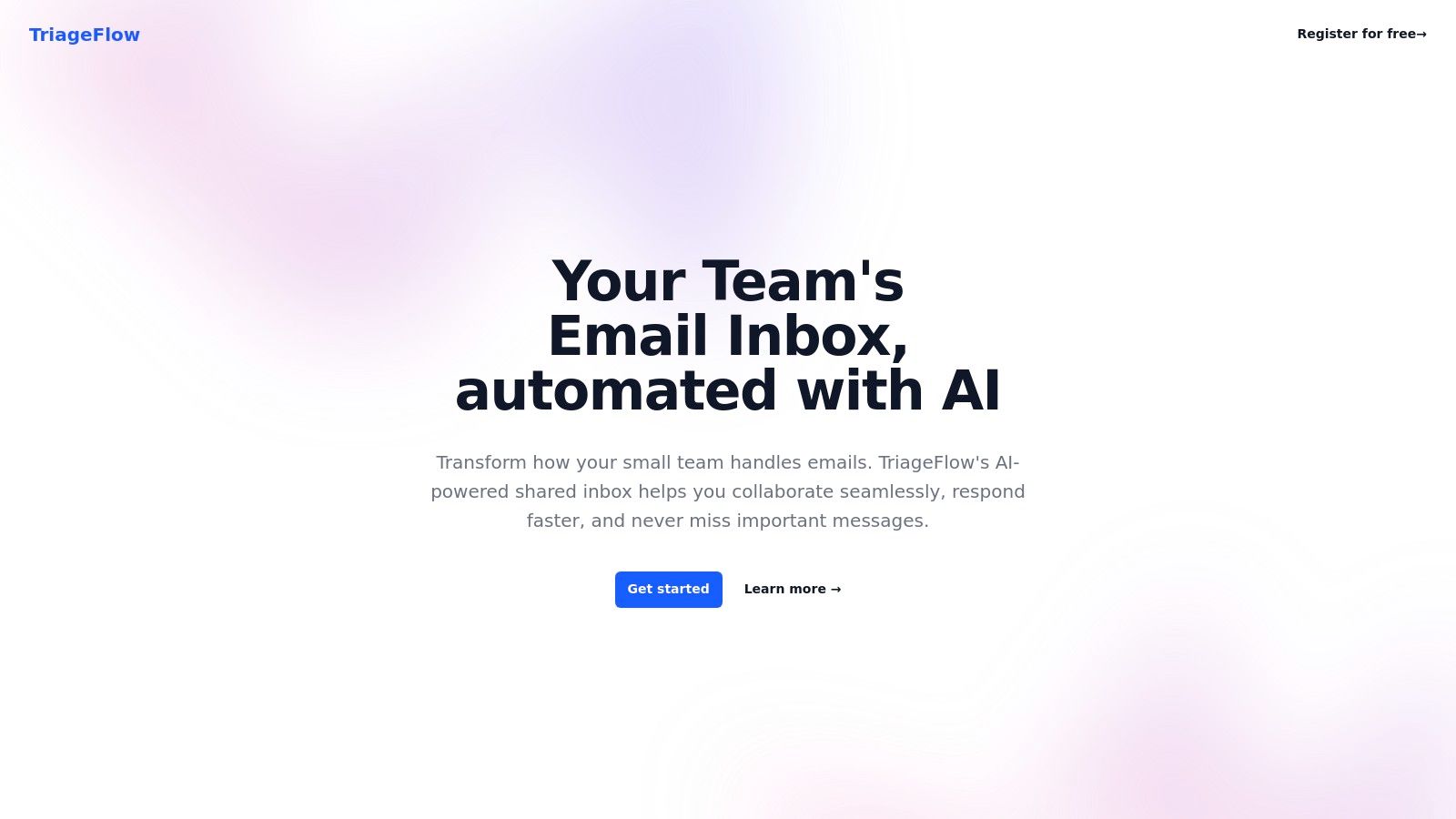
Triageflow reads incoming customer emails, retrieves your past resolutions and knowledge-base content, drafts a complete response in your team's tone, and presents it to the agent for review and edit. Agent approves and sends. Designed specifically for customer support email — not personal inbox management, not chatbot replacement.
What works:
- Draft-and-approve workflow — captures AI speed without catastrophic AI replies. Typically 2-3× faster on routine email
- Grounded in your past resolutions — replies sound like your team, not like generic AI
- Unlimited seats — pricing scales with email volume, not headcount
- Works with your existing email — Gmail, Outlook, IMAP. No migration
Where it's weak:
- Customer-support email focus — not built for personal inbox or marketing outreach
- Email-only platform — no native chat, voice, or social
- Younger product than incumbents — fewer niche integrations
Pricing (live as of May 2026):
- $49/month — 500 emails/month, unlimited seats
- $199/month — 2,500 emails/month, unlimited seats
- $1,499/month — 25,000 emails/month, unlimited seats
14-day free trial, no card required. Email-volume pricing is unusual in this space — most tools charge per-seat, which penalizes growing teams.
Visit: triageflow.com
2. Superhuman — Premium AI-powered email client
Best for: Power users and executives who treat their personal email like a productivity instrument and will pay for the fastest UX in the category.
Superhuman has been the leader in premium email UX since 2017. In 2026 it's also one of the more mature AI implementations for personal email — split inbox with AI triage, AI-drafted replies inline, AI-generated summaries.
What works:
- Fastest UI in this list — keyboard-driven, near-instant for every action
- AI triage prioritizes incoming email automatically
- AI-drafted replies and summaries integrated cleanly
- Personalized onboarding — every new user gets a 1:1 session
Where it's weak:
- $30/user/month is premium pricing — adds up for teams
- Gmail + Microsoft 365 only — no IMAP, no other providers
- Limited third-party integrations vs. Outlook/Gmail
- Personal use, not team customer support — doesn't replace a helpdesk
Pricing (May 2026): $30/user/month (annual). Teams plan at $40/user/month. Free trial requires a personal onboarding session.
Visit: superhuman.com
3. Shortwave — AI email client built on Gmail
Best for: Gmail power users who want a true AI agent that drafts, summarizes, searches, and acts on email — not just a writing assistant.
Shortwave (built by ex-Google Inbox engineers) is the most aggressive AI-native email client in 2026. The AI is an agent — you can ask it to draft a reply, search your past email, schedule sends, summarize threads, even take multi-step actions. Built on top of Gmail accounts.
What works:
- Most ambitious AI agent for personal email — multi-step actions, not just drafts
- Built on Gmail — works with existing account, no migration
- AI-powered search across your entire mailbox
- Free tier exists with usable features
Where it's weak:
- Gmail only (Workspace + personal). No Outlook, no IMAP
- Personal focus — team features exist but aren't the strength
- AI quality varies on niche tasks (improving rapidly but not always reliable)
Pricing (May 2026):
- Free: limited AI usage, basic features
- Personal Pro: $9/user/month
- Business: $29/user/month
Visit: shortwave.com
4. Microsoft Copilot for Outlook — Native AI in Outlook
Best for: Teams already on Microsoft 365 who want AI features built directly into the Outlook they already use.
Microsoft Copilot for Outlook ships AI directly into the Outlook compose window, inbox view, and meeting prep. Draft an email, summarize a long thread, find action items, prepare for a meeting using past email — all without leaving Outlook.
What works:
- No new tool to learn — AI inside the email client you already use
- Tight integration with Teams, calendar, Word, Excel — drafts reference your other M365 content
- Enterprise-grade privacy posture — Microsoft's data handling commitments apply
- Mature on summarization — long email threads to bullet-point summaries works well
Where it's weak:
- $30/user/month on top of M365 cost — expensive for SMB teams
- AI quality is improving but uneven — drafting is OK, complex reasoning is mid
- Microsoft 365 only — useless if you're not in the ecosystem
- Limited customization — you get Microsoft's prompts, not yours
Pricing (May 2026): $30/user/month, requires Microsoft 365 Business Standard or above. Annual commitment.
Visit: microsoft.com/copilot
5. Gemini for Google Workspace — Native AI in Gmail
Best for: Teams on Google Workspace who want Gemini AI features in Gmail, Docs, Sheets, Slides, and Meet.
Gemini for Workspace is Google's answer to Microsoft Copilot — AI embedded inside Gmail, Docs, etc. In Gmail specifically: "Help me write" for drafting, summarize long threads, smart compose suggestions, semantic search.
What works:
- Native inside Gmail — no extension, no new app
- "Help me write" + summarization are mature, useful in daily work
- Tight integration with Docs/Sheets/Slides — AI references your other Workspace content
- Strong privacy commitments for Workspace customers (data not used to train public models)
Where it's weak:
- Google Workspace only — useless if you're not in the ecosystem
- Pricing is layered on top of Workspace — adds up for teams
- Less customization than purpose-built AI tools
- AI features vary by Workspace tier — Business Starter doesn't get full feature set
Pricing (May 2026):
- Gemini Business: $20/user/month
- Gemini Enterprise: $30/user/month
- Requires active Google Workspace subscription
Visit: workspace.google.com/ai
6. Boomerang for Gmail — AI writing + scheduling + follow-up
Best for: Gmail users who want AI writing help plus the productivity classics (send later, follow-up reminders, inbox pause) in one tool.
Boomerang has been a Gmail power-user staple since 2010, and added AI features (Respondable) to its writing assistance + scheduling + follow-up suite. Not the best at any one thing, but the combination is unique.
What works:
- Combines AI writing with productivity classics (schedule send, follow-up reminders, inbox pause)
- Respondable AI scores emails on subject, tone, politeness — useful for outreach
- Free tier covers basic features
- Gmail-native — Chrome extension, simple setup
Where it's weak:
- Gmail only (Outlook version exists but is less mature)
- AI quality is good but not state of the art vs. Gemini or Copilot
- Best features behind paywall — free tier is limited
- Can slow Gmail slightly with extensions enabled
Pricing (May 2026):
- Free: limited messages/month
- Personal: $4.99/month
- Pro: $14.99/month
- Premium: $49.99/month
Visit: boomeranggmail.com
7. Grammarly Pro / Business — Writing assistance across all email
Best for: Teams who want consistent grammar, tone, and brand voice across email, Slack, docs, and any other text.
Grammarly is not email-specific — it works everywhere you write. The 2026 version (Grammarly + Coda + acquired AI tools) is significantly more capable than the spelling-checker it started as. For teams that need brand-voice enforcement across communication, it's still the strongest option.
What works:
- Works across every tool — email, Slack, docs, anywhere text gets typed
- Strong brand voice / tone controls — team-wide style guides
- Generative AI built in — rewrite for tone, change length, etc.
- Free tier is genuinely useful for individuals
Where it's weak:
- Not email-specific — doesn't understand email context as well as Copilot/Gemini
- Privacy concerns — Grammarly sees everything you type. Check policies carefully
- Pricing for teams scales fast — $15/user/month for Business
Pricing (May 2026):
- Free: basic grammar + tone
- Pro: $12/user/month
- Business: $15/user/month (min 3 seats)
- Enterprise: custom
Visit: grammarly.com/business
8. HubSpot Email AI — AI inside HubSpot's email tools
Best for: Teams already on HubSpot who want AI in HubSpot's marketing, sales, and service email features.
HubSpot has rolled AI throughout its product since 2024 — Breeze AI drafts marketing emails, sales sequences, service replies. Not a standalone email client, but if you live in HubSpot, the AI features are increasingly capable.
What works:
- Tight integration with HubSpot CRM data — emails grounded in contact properties
- Marketing + sales + service email AI in one platform
- Improvement curve has been steep — much better in 2026 than 2025
- No additional subscription for most AI features in higher tiers
Where it's weak:
- Only valuable if you're on HubSpot — not a standalone tool
- AI features split across tiers — full power requires Marketing/Sales/Service Pro
- Less depth than purpose-built AI email tools in any one direction
Pricing (May 2026): Bundled with HubSpot Marketing Hub / Sales Hub / Service Hub tiers. Free tier has limited AI; full features at $1,000+/month Pro tiers.
Visit: hubspot.com
9. SaneBox — AI sorting overlay for any inbox
Best for: Users who don't want to switch email apps but want AI prioritization and clutter management on top of their existing inbox.
SaneBox is the original AI-for-email tool. It learns what's important to you and moves less-important messages to SaneLater, SaneNews, and SaneBulk folders. You keep using Gmail/Outlook/whatever — SaneBox organizes in the background.
What works:
- Works with any email service — Gmail, Outlook, iCloud, IMAP
- Zero workflow change — install once, no new app to learn
- AI learning improves over time as you correct it
- SaneBlackHole is the best one-click sender block in this list
Where it's weak:
- Sorting only, no drafting — different sub-category from Triageflow/Superhuman
- No free tier (just 14-day trial)
- Modern email clients have some overlapping features built in now
Pricing (May 2026): $7-36/month depending on tier. Lower tiers omit some features (Snooze, follow-up reminders).
Visit: sanebox.com
10. Unroll.me — AI subscription cleanup
Best for: Personal users drowning in newsletter and subscription emails who want a one-click solution.
Unroll.me detects subscription emails, lets you bulk-unsubscribe with one click, and bundles the keepers into a daily "Rollup" digest. Single-purpose tool, free, works well at what it does.
What works:
- Free for personal use
- One-click unsubscribe is genuinely satisfying
- Daily Rollup consolidates kept subscriptions cleanly
- Multi-provider support (Gmail, Outlook, iCloud, Yahoo)
Where it's weak:
- Privacy concerns — Unroll.me's data practices have been controversial (2017 incident with parent company JMP). Review carefully before using on a work account
- Single-purpose — only handles subscriptions
- Not really an "AI assistant" in the modern sense — more like clever automation
Pricing: Free.
Visit: unroll.me
Which AI email assistant fits your use case?
"I'm a team handling customer email and need AI to draft replies"
Best fit: TriageFlow. The draft-and-approve workflow with human-in-the-loop, unlimited seats, and email-volume pricing match this use case directly. Nothing else in this list is built for it the same way.
"I want the fastest personal email UX, willing to pay for it"
Best fit: Superhuman ($30/user/month). The AI features are good, the UI is faster than anything else. Premium price is the trade-off.
"I'm a Gmail power user wanting AI features without switching to Superhuman"
Best fit: Shortwave (free tier exists, $9/mo for Pro) for the most ambitious AI agent, or Gemini for Workspace for native Gmail integration.
"I'm on Microsoft 365 and want AI in Outlook"
Best fit: Microsoft Copilot for Outlook ($30/user/month). It's expensive, but you don't add a new tool — AI lives where you already work.
"I want to clean up subscription emails without buying anything"
Best fit: Unroll.me (free). Single-purpose, does it well.
"I want AI prioritization on my existing inbox without changing email apps"
Best fit: SaneBox ($7/month). Provider-agnostic, sits on top of whatever you use.
"I want writing help across email, Slack, docs — everywhere"
Best fit: Grammarly Pro/Business ($12-15/user/month). Not email-specific, which is the strength.
"We're on HubSpot for everything else already"
Best fit: HubSpot Email AI. Bundled, contextually aware of your CRM data.
AI email assistant FAQs
What's the best AI email assistant for a small team?
For customer-facing email with AI drafting: TriageFlow (unlimited seats, $49/mo entry). For internal email productivity: Microsoft Copilot (if on M365), Gemini for Workspace (if on Google), or Boomerang as a Gmail extension. Pick the tool whose primary job matches your actual bottleneck.
How much does an AI email assistant cost?
Wide range. Free tier options: Shortwave Free, Boomerang Free, Unroll.me. Entry-level paid: Boomerang $4.99/mo, SaneBox $7/mo, Shortwave Pro $9/mo. Mid-tier: Triageflow $49/mo (team, by email volume), Grammarly Pro $12/user/mo. Premium: Superhuman $30/user/mo, Microsoft Copilot $30/user/mo (on top of M365), Gemini Business $20/user/mo (on top of Workspace).
What is AI email triage and which tool does it best?
AI email triage means automatically categorizing incoming email by priority, sender importance, or category — so you focus on what matters first. Best tools: SaneBox (purest triage overlay, works with any email), Superhuman (triage built into a premium email client), Triageflow (triage + AI-drafted replies for team customer email). For team customer support specifically, Triageflow's draft-then-approve workflow goes a step further than pure triage.
Is there a free AI email assistant that actually works?
Yes. Shortwave Free gives you an AI email client with limited AI requests. Boomerang Free has the basics (schedule send, follow-up). Unroll.me is free for subscription cleanup. Grammarly Free handles basic writing assistance everywhere. None match the depth of paid alternatives, but for individual personal use, the free tier of Shortwave or Boomerang covers most needs.
What's the difference between an AI email assistant and an AI chatbot?
AI email assistant = AI that helps with email — drafting, prioritizing, replying, summarizing. Operates inside or alongside your email. AI chatbot = AI that talks to customers (or employees) in a chat interface, typically autonomous. They sometimes overlap (Intercom Fin can handle both chat and email autonomously) but the use cases are usually distinct.
Will AI email assistants make typos / hallucinate / send wrong replies?
The risk depends on how the tool is set up. Autonomous tools (no human review) can send wrong replies — this is why most enterprise customer-support deployments use draft-then-approve (Triageflow's model) instead. Drafting tools (Copilot, Gemini, Grammarly) require human approval before sending, so the risk is much lower. Always check whether the AI sends on its own or hands off to a human before deploying for any customer-facing email.
Can AI email assistants read all my email?
Most cloud AI email tools need access to your email to function. The legitimate ones (Copilot, Gemini, Superhuman, Triageflow, Shortwave) have clear privacy policies and SOC 2 / GDPR commitments. Free or cheap tools sometimes have aggressive data practices (Unroll.me had a public incident in 2017 with parent JMP — they've since reformed but check policies). Always read the privacy policy before connecting AI to high-sensitivity inboxes.
Is Microsoft Copilot worth the $30/user/month?
For teams already deep in Microsoft 365 (Word, Excel, Teams, Outlook all used daily): yes, the cross-product value adds up. For teams using only Outlook from Microsoft: usually no — purpose-built tools like Triageflow, Boomerang, or Shortwave cost less and do email-specific tasks as well or better.
Which AI email tools work with my existing Outlook?
Native AI in Outlook: Microsoft Copilot (paid M365 add-on). AI extensions that work with Outlook: Grammarly, SaneBox (overlay), Boomerang (limited Outlook support). AI tools that replace Outlook: Superhuman (Outlook 365 only), Shortwave (Gmail only — doesn't work with Outlook). Tools that connect to your Outlook inbox externally: TriageFlow (reads Outlook, drafts replies, sends back via your account).
What to do next
Don't buy "AI email." Buy the tool for the sub-category that matches your bottleneck:
- Customer-support email overload → TriageFlow (14-day trial)
- Personal inbox UX → Superhuman or Shortwave
- AI inside the email you already use → Microsoft Copilot or Gemini for Workspace
- AI prioritization without changing apps → SaneBox
- Subscription clutter only → Unroll.me (free)
The wrong tool from the right sub-category beats the right tool from the wrong sub-category, every time.